Introduction
A coming soon page with a countdown timer is one of the most effective pre-launch assets you can build. The timer gives visitors a concrete reason to care—something is happening on a specific date, and they do not want to miss it.
The psychology is simple but powerful. A countdown timer introduces a deadline where none existed. Without it, visitors think "I will check back later" and never return. With it, they think "I need to sign up now so I do not miss the launch." That shift in mindset can increase email signup rates by 20–35%.
In this guide, you will learn why countdown timers work, how to add one to your coming soon page using different tools, and the best practices that separate high-converting timers from ineffective ones. Whether you use a coming soon page builder or custom code, this guide has you covered.
The Psychology Behind Countdown Timers
Countdown timers tap into well-documented psychological principles. Understanding these principles helps you use timers more effectively—not as a gimmick, but as a legitimate conversion tool.
Scarcity principle. When something is limited—by time, quantity, or access—people perceive it as more valuable. A countdown timer makes time the scarce resource. Visitors see the seconds ticking away and feel the opportunity shrinking. Robert Cialdini's research on influence shows scarcity is one of the six primary drivers of human decision-making.
FOMO effect. Fear of missing out is not just a social media buzzword—it is a real cognitive bias. When visitors see a countdown on your coming soon page, they imagine others signing up and getting access first. Nobody wants to be left behind. FOMO transforms passive interest into active signup behavior.
Urgency bias. Humans consistently prioritize urgent tasks over important ones. A countdown timer makes your signup form feel urgent, even if the visitor was not planning to act today. Research from the Journal of Consumer Research shows that deadlines—even arbitrary ones—increase completion rates on tasks people were already considering.
Conversion impact. Real-world data backs this up. ConvertKit reports that pages with countdown timers see conversion rate increases of up to 35%. Email marketing platform data shows countdown emails generate 2x higher click-through rates than identical emails without timers.
How to Add a Countdown Timer to Your Coming Soon Page
There are three main approaches to adding a countdown timer to your coming soon page: using a dedicated builder, using a WordPress plugin, or writing custom code. Here is a step-by-step breakdown of each.
Using Synerva (Easiest)
Synerva includes a countdown timer as a built-in block, so there is no code to write and no third-party widget to embed. Here is how to add one:
- Create a new project in Synerva and choose a coming soon template (or start from scratch).
- Drag the Countdown Timer block onto your page from the block library. Position it above the fold, near your headline.
- Set your launch date and timezone. The timer automatically calculates days, hours, minutes, and seconds remaining.
- Customize the design. Adjust colors, fonts, sizes, and layout to match your brand. Choose between inline, card, or full-width styles.
- Publish or export. Publish directly to your domain, or export the page as a React, Next.js, or Angular component—countdown logic included.
The exported code includes a fully working countdown component with proper time-zone handling and a configurable "timer expired" state. No external dependencies required.
Using SeedProd
If you are on WordPress, SeedProd offers a countdown timer widget in its drag-and-drop builder:
- Install and activate SeedProd in your WordPress admin.
- Create a new coming soon page and choose a template.
- Drag the "Countdown" block onto your page layout.
- Set the target date and customize colors and typography.
- Save and activate the coming soon mode to make it live.
SeedProd's countdown is tied to your WordPress site—you cannot export it as standalone code. The timer runs client-side and does not support timezone configuration on all plans.
Custom Code (HTML/CSS/JS)
If you prefer full control, you can build a countdown timer from scratch. Here is a minimal, production-ready example:
<div id="countdown" style="display:flex;gap:1rem;font-family:system-ui">
  <div><span id="days">00</span><small>Days</small></div>
  <div><span id="hours">00</span><small>Hours</small></div>
  <div><span id="minutes">00</span><small>Min</small></div>
  <div><span id="seconds">00</span><small>Sec</small></div>
</div>

<script>
  const launch = new Date("2026-04-15T00:00:00Z").getTime();

  function update() {
    const now = Date.now();
    const diff = Math.max(0, launch - now);

    document.getElementById("days").textContent =
      String(Math.floor(diff / 86400000)).padStart(2, "0");
    document.getElementById("hours").textContent =
      String(Math.floor((diff % 86400000) / 3600000)).padStart(2, "0");
    document.getElementById("minutes").textContent =
      String(Math.floor((diff % 3600000) / 60000)).padStart(2, "0");
    document.getElementById("seconds").textContent =
      String(Math.floor((diff % 60000) / 1000)).padStart(2, "0");

    if (diff > 0) requestAnimationFrame(update);
  }

  update();
  setInterval(update, 1000);
</script>
This approach gives you complete control but requires you to handle responsive design, styling, timezone edge cases, and the "timer expired" state yourself. For most teams, a builder like Synerva handles all of this automatically and lets you export the result as clean component code.
Best Practices for Countdown Timers
A countdown timer only works if it is implemented well. Here are the practices that separate effective timers from ones that get ignored—or worse, hurt trust.
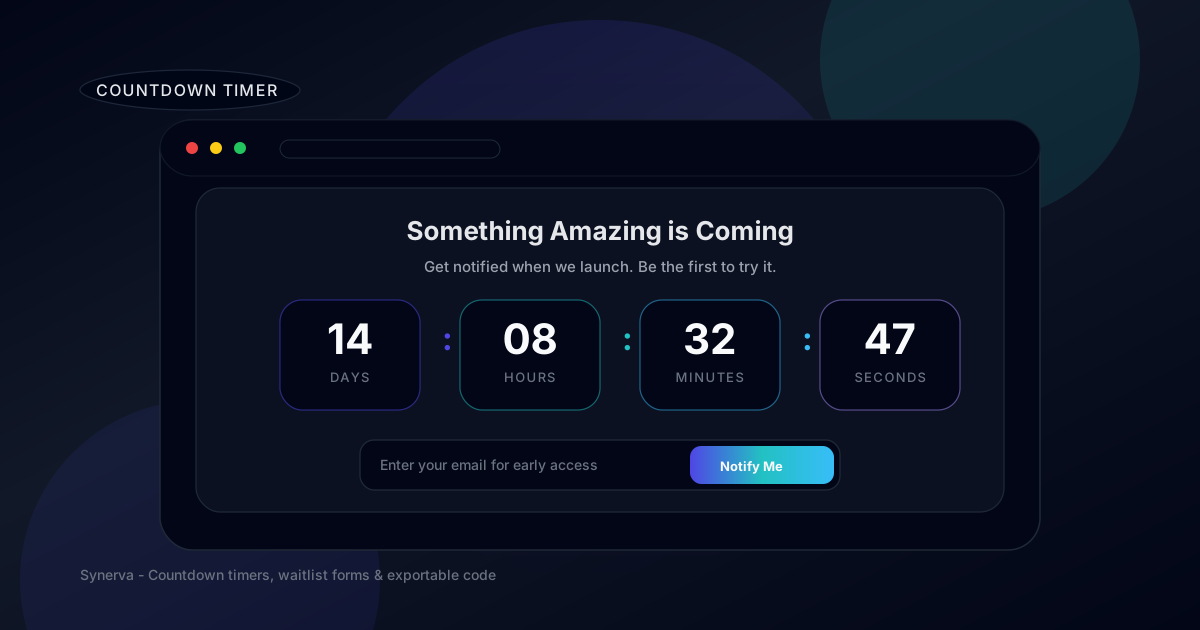
Placement on page. Position your countdown timer above the fold, ideally between your headline and your email signup form. The visual flow should be: headline → timer → CTA. Visitors should see all three without scrolling.
Design tips. Use large, high-contrast numbers that are immediately readable. Separate days, hours, minutes, and seconds into distinct visual blocks with labels. Avoid overly decorative fonts—clarity trumps style for timer numerals.
Copy tips. Add a short line of context above your timer: "Launching in" or "Early access opens in" tells visitors what the countdown is for. A timer without context creates confusion, not urgency.
Use a real deadline. Never use a fake or evergreen countdown timer. Visitors will lose trust if they return and see the same "3 days left" they saw last week. If your launch date is flexible, set the timer to a date you can commit to, even if it is a soft launch or beta.
Timing strategy. For product launches, 7–30 days is the sweet spot. Shorter timers work for flash sales and promotions. Longer timers work for major launches where you need time to build a waitlist and nurture subscribers.
Mobile optimization. Over 60% of visitors will see your page on a phone. Make sure your timer blocks reflow cleanly on small screens—a 2×2 grid works better than a single row of four on mobile. Test on real devices, not just browser resize.
Real Examples: Coming Soon Pages with Countdown Timers
Here are real-world examples of coming soon pages that use countdown timers effectively. Each demonstrates a different approach you can learn from.
1. Product Hunt launches. Many top Product Hunt launches use a coming soon page with a countdown to their launch day. The timer is typically centered, large, and paired with a "Get notified" email form. The urgency of the PH launch window (24 hours of visibility) makes the countdown feel genuinely time-sensitive.
2. SaaS beta access pages. Tools like Linear and Resend used countdown-style coming soon pages during their beta phases. The timer counted down to "public access opens" and was paired with a waitlist position counter ("You are #847 on the waitlist"). The combination of countdown + position creates double urgency.
3. Indie hacker launches. Solo founders on Twitter/X frequently share their coming soon pages with countdown timers as part of their "build in public" strategy. The timer serves double duty—it creates urgency for visitors and holds the founder accountable to a public deadline.
4. Event and conference pages. Tech conferences like Next.js Conf use countdown timers to registration deadlines and early-bird pricing cutoffs. The timer is often paired with tiered pricing ("$99 until the timer hits zero, then $199").
Why Synerva's Countdown Timer Is Best
Not all countdown timer implementations are equal. Here is what makes Synerva's approach stand out for developers and technical founders:
- Built-in, not bolted on. The countdown timer is a native block in the visual editor—not a third-party embed or iframe. It renders as clean HTML and JavaScript with no external dependencies.
- Customizable design. Adjust colors, fonts, sizes, spacing, and layout. Choose from multiple timer styles (inline, cards, minimal, bold) that match your page design.
- Export the code. When you export your page, the countdown component comes with it—including timezone-aware logic, the "expired" state, and responsive CSS. Drop it into your React or Next.js project and it works immediately.
- Timezone handling. Set your launch date in any timezone. The timer calculates the correct remaining time for each visitor based on their local clock.
Learn how to create a coming soon page from scratch using Synerva's step-by-step workflow.
Frequently Asked Questions
Do countdown timers really increase conversions?
Yes. Data from ConvertKit and other email platforms shows countdown timers can increase conversion rates by 20–35%. The key is using a real deadline—fake timers destroy trust and hurt long-term conversions.
How long should my countdown timer run?
For product launches, 7–30 days is ideal. Shorter timers (1–3 days) work for promotions and flash sales. Longer timers (30+ days) are appropriate for major launches where you need time to build a substantial waitlist.
What happens when the countdown reaches zero?
Plan your "timer expired" state in advance. Options include: redirecting to your live product, displaying a "We are live!" message with a CTA, or switching to a new countdown for a follow-up event. Never leave a page showing 00:00:00 with no action.
Can I add a countdown timer to an existing page?
Yes. If you are using Synerva, add the countdown block to any existing project. For custom pages, use the HTML/JS snippet in this guide. For WordPress, SeedProd offers a drag-and-drop countdown widget.
Create Your Countdown Timer with Synerva
A countdown timer transforms a passive coming soon page into an active conversion tool. It creates urgency, triggers FOMO, and gives visitors a concrete reason to sign up now instead of "later."
To recap: place your timer above the fold, use a real deadline, pair it with a strong email signup CTA, and make sure it looks great on mobile. Whether you create your coming soon page from a template or build from scratch, the timer is the element that converts browsers into subscribers.
Create your countdown timer with Synerva. Drag, drop, set your date, and publish—or export clean React code with the countdown logic included. Free to start, no credit card required.